ASO keyword research: audit relevance before chasing volume
Audit App Store keyword research exports, reconcile conflicting rankings, reject irrelevant terms, and document the evidence in a downloadable worksheet.

Research method
A researched guide informed by the Light Apps invoicing-app episode published July 10, 2025 and current Apple guidance checked October 1, 2026. The hosts’ keyword counts and indexing observations are historical claims, not independently verified current rankings. NaviStack did not run an ASO ranking experiment or audit the featured app. The invoice-app example is fictional and the worksheet is blank. Images are AI-generated explanatory diagrams, with their key information also available in accessible text and tables.
ASO keyword research should leave you with a short list of searches your app can satisfy. Start by checking relevance, then use demand and ranking estimates to decide which terms deserve attention. A large keyword export gives you more rows to investigate; it doesn't tell you how many useful customers those searches will bring.
This guide shows how to reconcile conflicting tool exports, check actual App Store results, and record a reason for keeping or rejecting each term. You'll need your app's current feature list, its store listing, keyword exports if you have them, and access to the storefront you're researching. The workflow focuses on iOS; the worksheet can also hold another store's evidence, but Apple's metadata rules apply only to Apple.
TL;DR
| Task | What matters |
|---|---|
| Compare exports | Match the app, storefront, query language, observation date, and rank depth before interpreting different counts |
| Check search intent | Look at actual organic results and ask whether your app delivers the outcome the searcher expects |
| Keep an audit record | Mark each term Keep, Investigate, or Reject, with evidence and a reason; leave unknowns visible |
| Choose metadata and review | Use accurate terms, exclude competing app names, and log changes before reviewing acquisition evidence |
What keyword counts actually tell you
In a July 2025 Light Apps Podcast episode about improving an invoicing app, the hosts describe one service showing 318 indexed keywords and another showing about 700. They also say the app appears for “Swift Playground,” a programming-related query that doesn't fit its invoicing task. These are the hosts' reported observations; NaviStack hasn't independently checked the app's historical rankings or tool exports. Watch the episode.
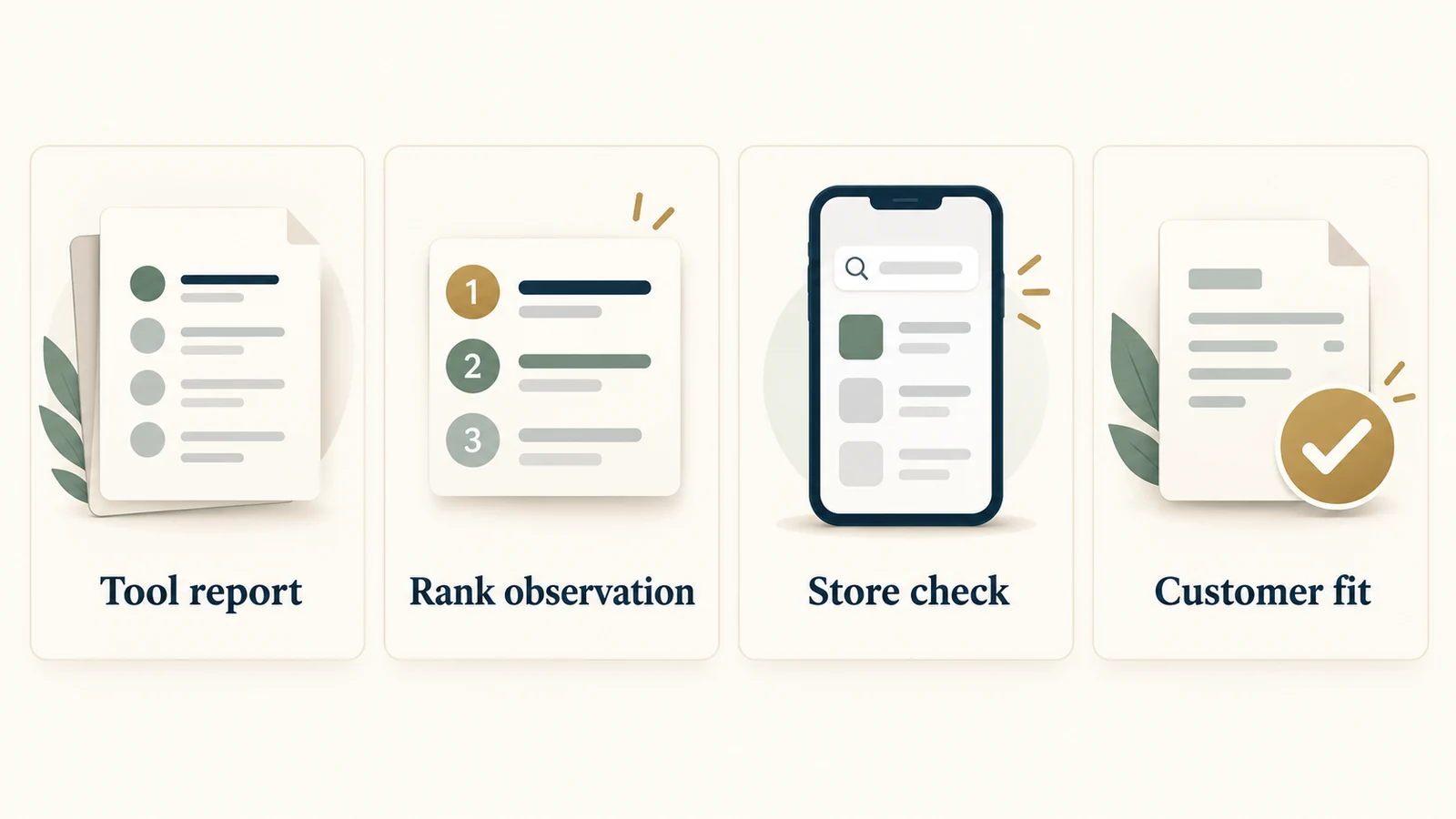
The useful question is what each row establishes. Keep these pieces of evidence separate:
| Evidence | What you can reasonably conclude |
|---|---|
| A tool labels a keyword “indexed” | The service reports a relationship between the app and query under its own definition; check that definition and date |
| A tool reports a rank | It reports a position within the storefront and result depth it checked; this doesn't establish demand or customer fit |
| You find the app in a manual search | The app appeared in that search on that device at that time; record the conditions |
| The query describes a supported task | The term is a relevance candidate; you still need evidence about demand and acquisition outcomes |
A blank rank or an app missing from the first results doesn't establish that Apple has excluded it from every possible result. Write “not observed within the checked depth” when that is what you know. Reserve “not indexed” for a clearly defined tool status, and label it as the tool's report.
For this audit, relevant demand means people searching for an outcome the app can deliver. A term can have estimated demand and still be useless for your product. Apple's search guidance describes text relevance and user behavior as ranking factors and advises using specific words that accurately describe the app. Apple's App Store search guidance.
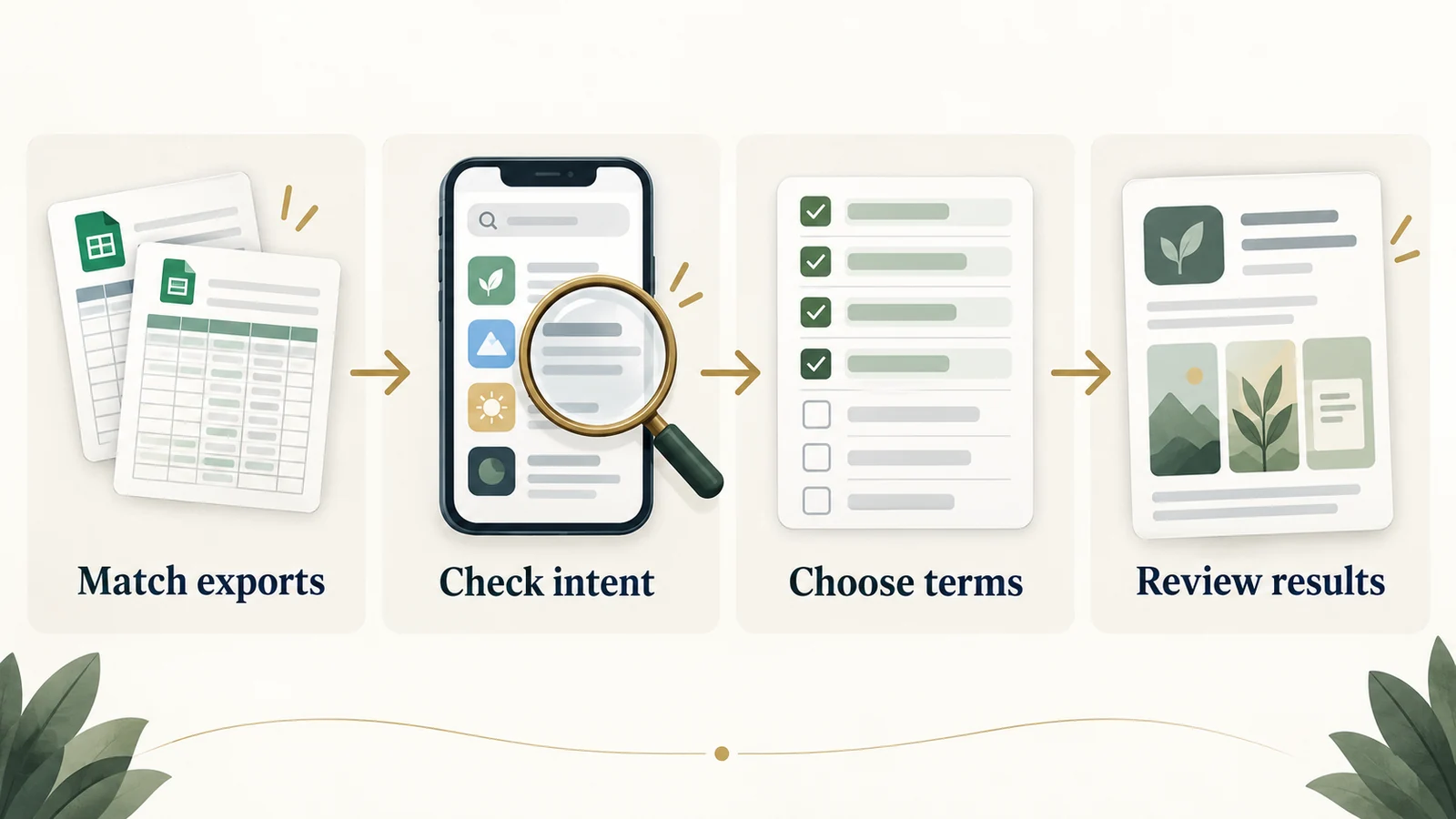
Step 1: Compare exports in the same context
Save the original exports before cleaning them. Keep each source file's name, tool, export time, and filters so you can trace a surprising row back to its origin.
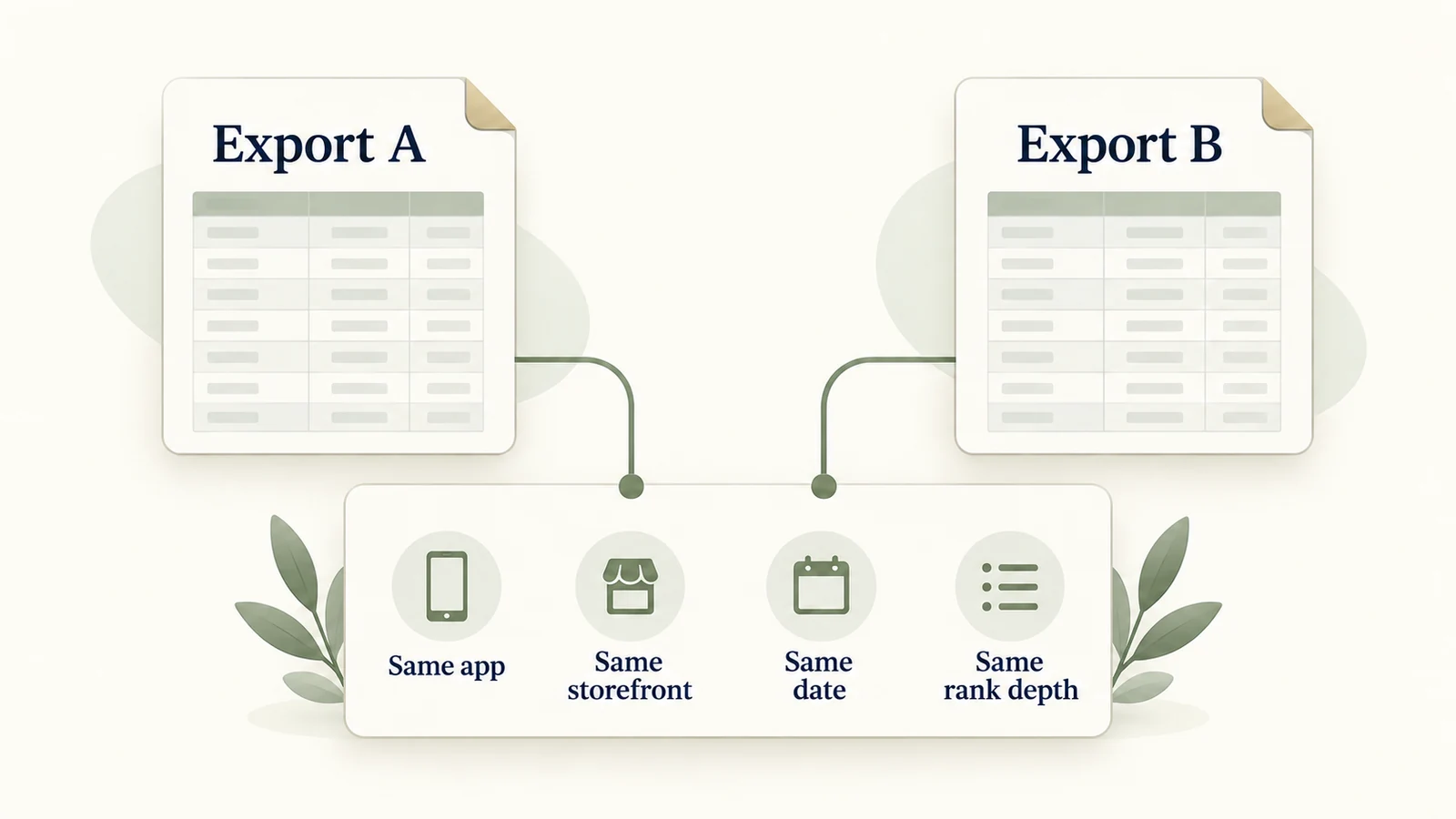
Compare the following settings. If a setting is missing, mark it unknown and avoid treating the counts as equivalent.
| Setting | What to record |
|---|---|
| App and platform | The exact app ID and whether the report covers iPhone, iPad, or another platform |
| Storefront and language | The country or region being searched, the query language, and any localization filter the tool provides |
| Observation date | When the ranking was checked, as well as when the export was downloaded |
| Result depth | The deepest position the service tracks or the report's selected rank cutoff |
| Keyword coverage | Whether the list contains tracked terms, discovered terms, suggestions, historical rows, or a mixture |
| Demand metric | The provider's metric name, scale or unit, market, and estimation period |
Different observation dates, filters, or result depths are possible explanations for a mismatch. They aren't proven explanations for the podcast's 318-versus-700 example. You'd need the underlying reports and the services' definitions to resolve that case.
Merge rows without losing their source
Use the combination of app ID, platform, storefront, query language, and query to identify the term you're comparing. Preserve the original query. For matching, you can trim leading and trailing spaces and compare capitalization consistently; don't silently merge different phrases or spellings.
Keep a separate observation for each tool and date. Then group the observations into:
- Seen in both exports: compare the dates and reported ranks. Agreement is worth recording, but it doesn't prove that the term is relevant.
- Seen in one export: check coverage, filters, and result depth before calling the other service wrong.
- Suggested without a rank observation: treat the term as a candidate to investigate, not an established ranking.
Don't add the two row counts together or average unlike demand scores. A popularity score on one provider's scale and an estimated search count from another answer different questions. Keep both values with their definitions, or use one consistent demand source for prioritizing the shortlist.
Step 2: Check the query in the actual storefront
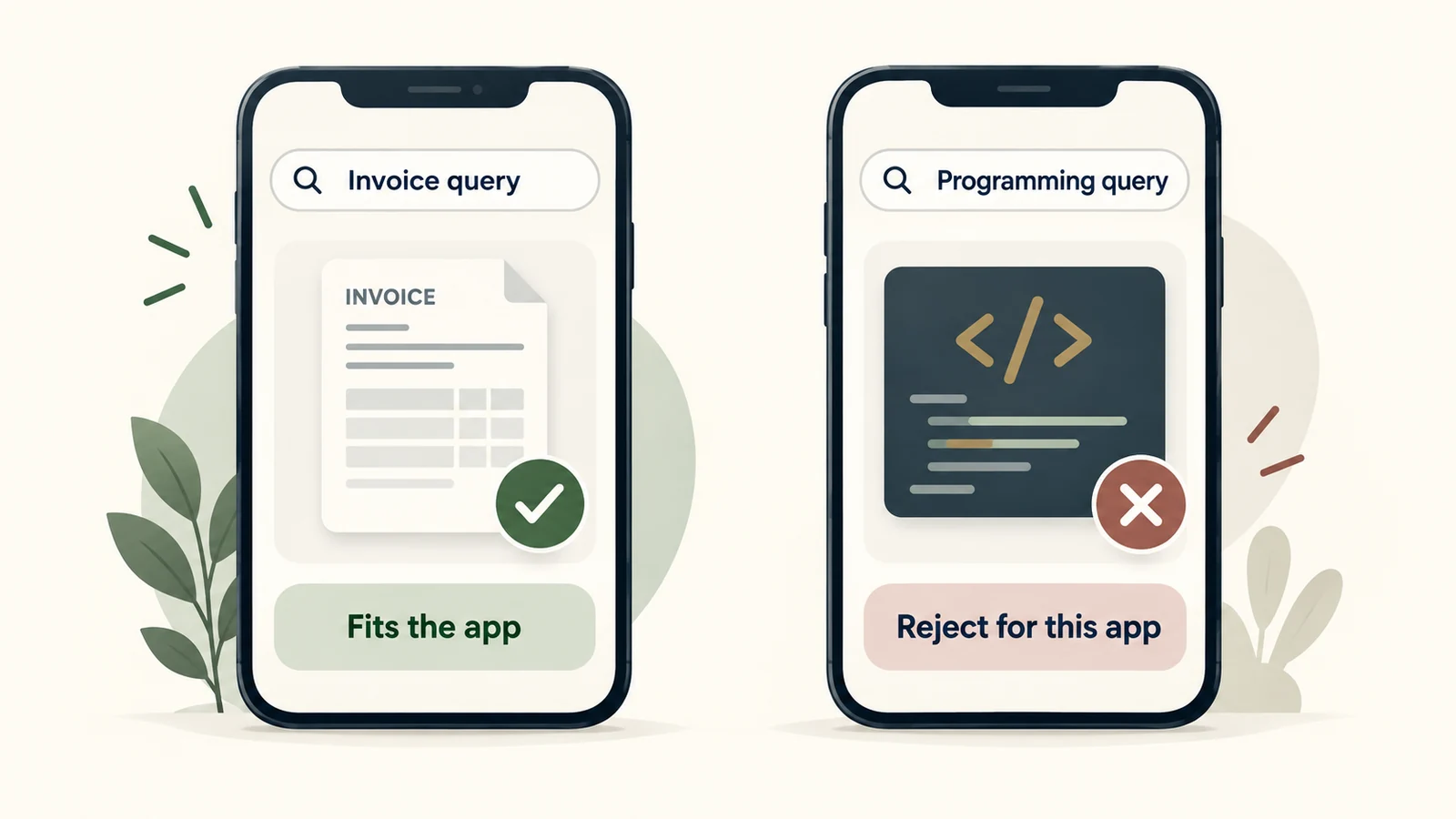
Take a manageable batch from the merged list: obvious matches, important disagreements, and suspicious terms. Search each exact phrase in the intended storefront and record enough context for another person to understand the check.
- Record the conditions. Note the storefront, query language, device and OS, date, time, and the exact phrase entered. If you can't access the intended storefront, keep the manual check unresolved.
- Separate ads from organic results. Note sponsored placements separately. Record an organic position only using a consistent counting method, and state how many organic app results you checked.
- Identify the job behind the query. Read the names, subtitles, and visible product demonstrations of the relevant results. Describe the outcome those apps offer: creating an invoice, scanning a receipt, managing accounts, or learning to code.
- Check your own feature evidence. Point to the screen, workflow, or supported capability that satisfies that outcome. A feature planned for a later release doesn't support a current keyword claim.
- Save the reason for the decision. Keep a dated screenshot or note, the app IDs of relevant competing results, and your assessment. If the tool and manual check disagree, preserve both observations and investigate rather than overwriting one.
The hosts' recommendation to inspect store results and focus on relevant competing apps is useful here. A broad business query may mix invoicing, accounting, and banking products. Choose comparison apps that serve the same customer task, even when other categories appear beside them.
Manual checking gives you evidence of the results you saw. It doesn't reveal Apple's full index or establish a universal rank for every user. Recheck an important discrepancy under comparable conditions before making a costly decision around it.
Use a relevance gate before sorting by demand
Ask three questions for each candidate:
- Can the current app deliver the main outcome implied by the phrase?
- Would the store page accurately demonstrate that outcome to someone arriving from the query?
- Is the term appropriate to use in your metadata?
Reject a clear mismatch even if a tool assigns it a high demand score. Keep competitor names in your research record to identify apps; exclude those names from your keyword field. Apple explicitly prohibits irrelevant terms and competing app names in keywords. Apple's keyword guidance.
For the invoicing app described in the podcast, a programming-environment query fails the first question. Discovering that ranking is a reason to flag the row, not a reason to promote the app as a coding tool.
Step 3: Complete the keyword audit worksheet
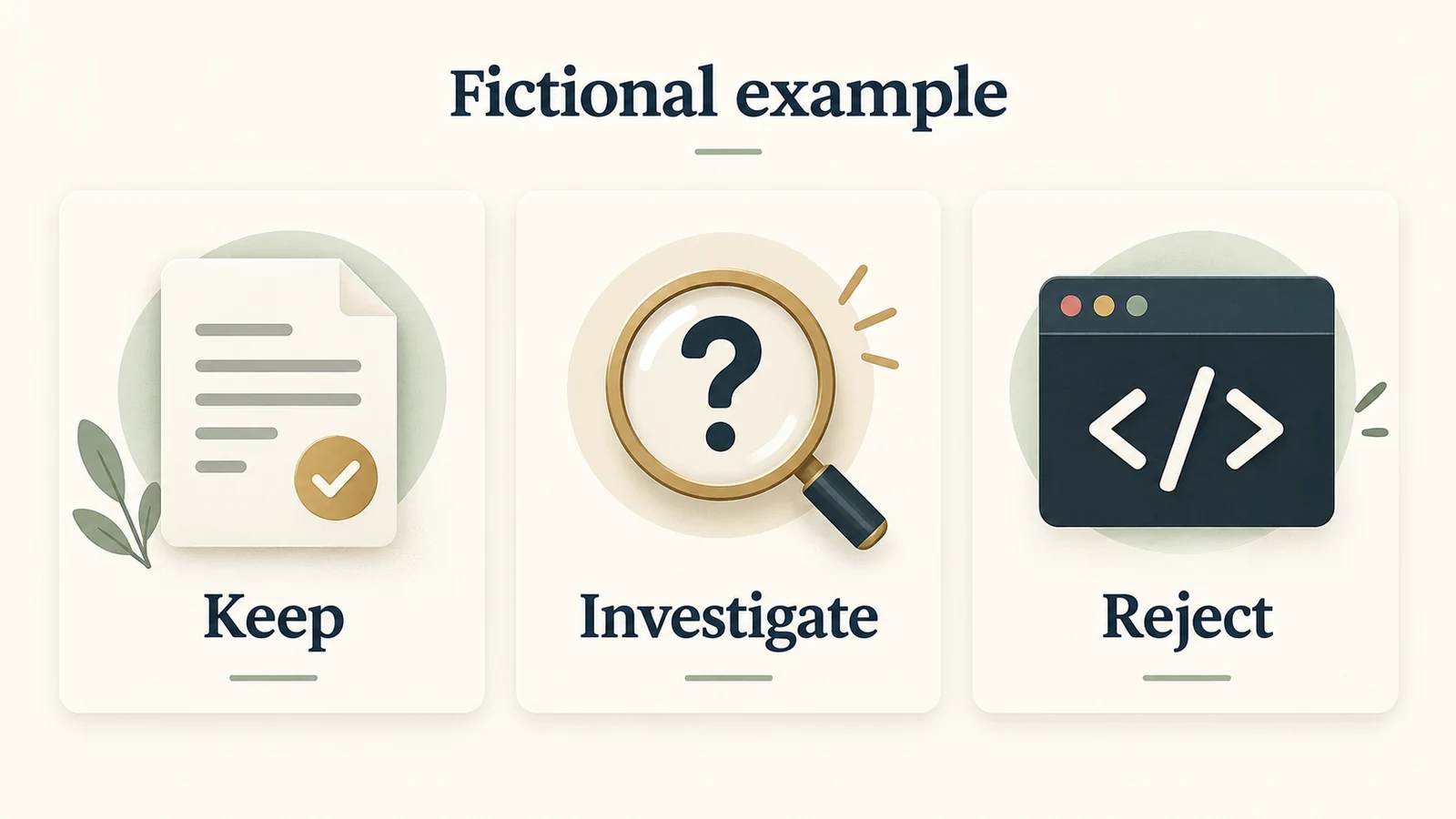
Download the blank ASO keyword audit worksheet and open it in a spreadsheet. It contains column headers, with no invented rankings, search volumes, or customer results. Use one row per source observation, and group rows belonging to the same query when making the final decision.
The columns cover app and market context, source files, observation times, rank depth, reported index status, demand metric definitions, manual checks, product evidence, and the decision. Fill in the evidence you have and leave the rest unresolved. Add a follow-up date for each important unknown so “Investigate” creates a task.
A fictional invoice-app example
Suppose an app lets freelancers create invoices, attach documents, and export a PDF. It has no receipt OCR, bookkeeping ledger, or programming features. The table below illustrates relevance decisions for that imagined product. It contains no actual export or search-result observations.
| Candidate term | Product fit and next check | Decision |
|---|---|---|
| invoice maker | Creating an invoice is a supported task. Check current results and comparable demand evidence before choosing metadata placement. | Keep as a candidate |
| freelance invoice | The app can create invoices, but investigate whether the searcher expects tax, payment, or other capabilities it lacks. | Investigate |
| receipt scanner | Document attachment doesn't provide receipt scanning or OCR. | Reject |
| bookkeeping app | An invoice export doesn't satisfy a full bookkeeping workflow. | Reject |
| Swift Playground | The app has no programming or learning-to-code function. | Reject |
| A competing app's name | Useful for identifying a research comparison; competing names aren't allowed in the keyword field. | Reject from metadata |
Keep means a term has passed the relevance screen. It doesn't mean it must go into the next metadata submission. Among those candidates, consider the consistency of the intent, comparable demand evidence, current visibility, and whether you can show the promised workflow clearly.
Investigate needs a specific missing fact: check the storefront, verify a feature expectation, or obtain a metric definition. Reject needs a reason you can revisit if the product changes. This record prevents an irrelevant term from coming back simply because a later export contains it again.
Step 4: Review the metadata and log the change
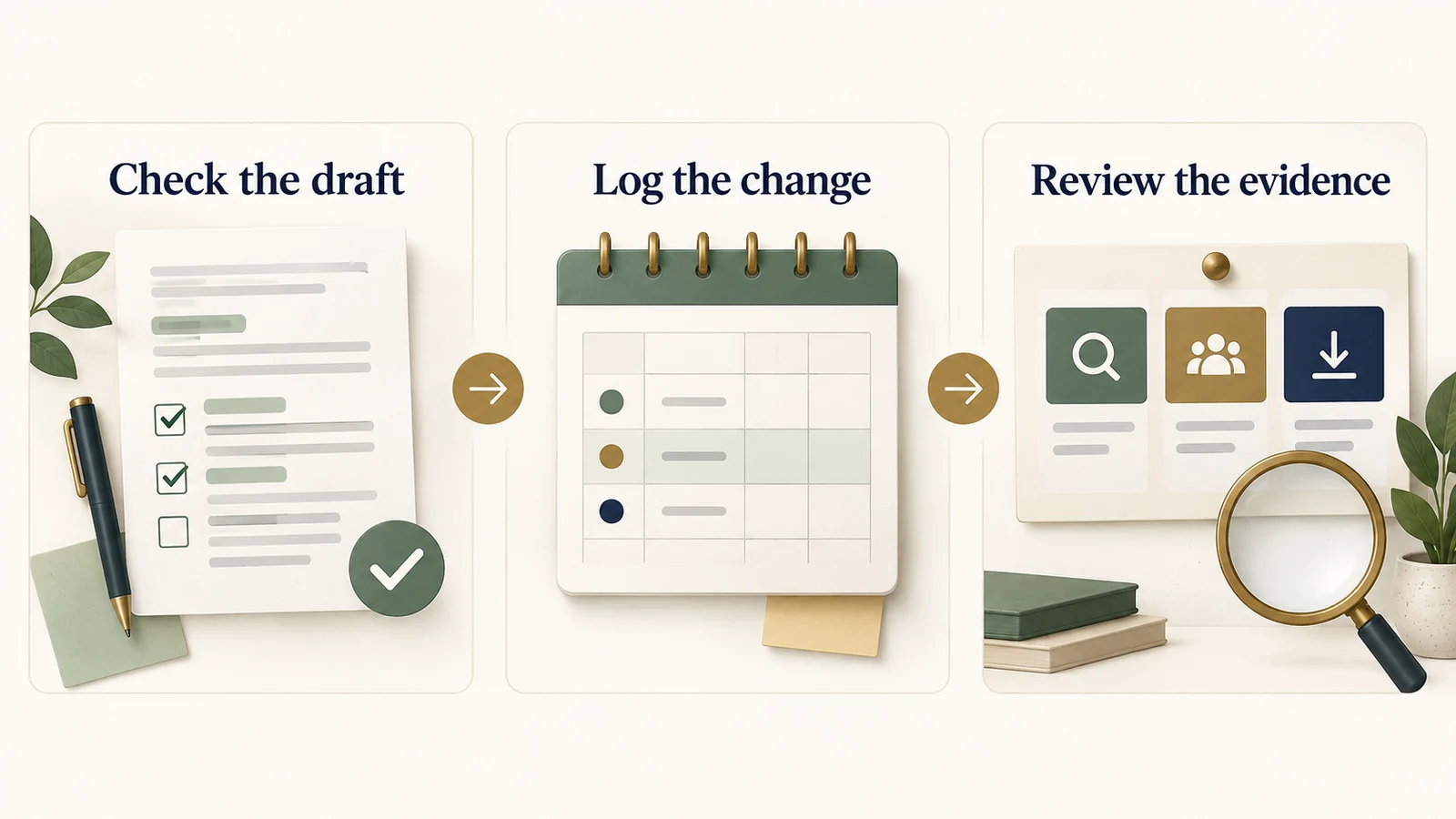
Once you have a defensible shortlist, draft the listing for the intended localization. Describe the supported task clearly in the name, subtitle, and product demonstrations. Choose keyword-field terms that add relevant coverage without repeating words already used in the app name, subtitle, or category. Apple's search guidance.
Apple's public search page describes a 100-character keyword limit, while its App Store Connect platform reference specifies 100 bytes. Characters and bytes can differ for non-ASCII text. Check the reference, measure the actual draft, and confirm the final value in App Store Connect. The reference also excludes other app or company names from the keyword list. Apple's platform version information.
Our App Store metadata checker checks field length and exact word repetition. It doesn't assess relevance, search demand, trademark rights, or whether the store will approve the listing. Use the worksheet to make those editorial decisions before the mechanical check.
Save the old and new text, the localization, submission and release dates, the terms you intended to investigate, and a review date. Record other changes that could affect discovery or conversion, including screenshots, pricing, campaigns, and product updates.
After release, revisit rankings under the same comparison settings and review acquisition for the same market and reporting window. In App Store Connect Analytics, you can examine discovery and downloads by source, territory, and device. App Store search includes views and downloads from search ads, so a rise in that total alone doesn't establish an organic gain. Apple's acquisition documentation.
Look at impressions, downloads, and the behavior of acquired users alongside the ranking observations. Record whether paid campaigns changed during the review period. A before-and-after change may justify further investigation; it doesn't isolate the effect of a keyword when other conditions also changed.
Finish the audit with a shortlist you can explain, a rejected-term record, and a small set of unresolved checks. The broader app marketing guide connects that discovery work to your offer, campaigns, and retention. The useful outcome is reaching people whose task your app can complete.
Keep reading
More practical guides and comparisons selected for this topic.