How we make AI UGC-style reaction videos for mobile apps
See how we make AI UGC ads for mobile apps: turn a portrait into a short reaction, pair it with a text hook, and lead into an app demo.
Research method and disclosure
A NaviStack field guide based on the owner-supplied LURKE workflow, source portrait, and reaction video. Tool documentation was checked on September 25, 2026. No ad performance results are presented.
LURKE is a NaviStack app. The video shown is an example from our creative process; no campaign performance result is claimed. The WaveSpeed link is an affiliate link.
If you hire a creator every time you want to try a new ad hook, testing gets expensive quickly. We use short AI-generated reactions to test AI UGC ads for our mobile apps before deciding which ideas deserve a shoot. We can change the face, expression, or line while keeping the app demo the same, then see whether viewers stay for the reveal.
For LURKE, our app for reviewing recent follow activity on public Instagram profiles, the opening shows someone noticing something. The text hints at what caught their attention; the app demo shows it. We decide on the line and the expression together so the reaction has a reason to be there.
TL;DR
| Your question | Short answer |
|---|---|
| Why use short AI reactions? | They make it easier to try more hooks and expressions without arranging a creator shoot for every variation. |
| What is the format? | A roughly four-second, 9:16 portrait reaction with a short text hook, followed by a product demo that explains the reaction. |
| How do we make one? | Choose a still, plan the hook and expression, generate and refine the clip, add the overlay and demo, then test the opening. |
| Can an agent help? | Codex, Claude Code, or Cursor can organize files and run the local assembly; video generation through WaveSpeed still uses a provider API. |
| What decides the winner? | Test the hook and reaction together, then check what viewers do after the opening and the app demo. |
Why this format is useful
The benefit is how quickly we can try another idea. Hiring a creator makes sense for a real testimonial, a detailed demo, or a campaign built around that creator's audience. It's a larger commitment when we only want to know whether one line and one expression get people to watch the next shot. A short generated clip lets us test those variations first.
It also makes the comparison clearer. Keep the LURKE demo the same and change the hook, or keep the hook and try a suspicious glance against a knowing eye roll. Change one part at a time and you have a better chance of understanding what helped.
That saves production coordination across boosted posts and paid ads, where new creative is a recurring need. It says nothing on its own about install costs or customer quality. The opening still has to hold attention, and the demo has to show the app accurately and give viewers a reason to act.
Step by step: from still image to testable ad
This is how we make an AI UGC video ad opening from a single still. Each opening is a roughly four-second, 9:16 portrait reaction with a line of text. The demo that follows answers the question raised by that line. Facial movement stays small so viewers can take in both the expression and the hook.
- Step 1 — Choose a still: Find or generate a clear face, clean framing, and a simple background with space for text.
- Step 2 — Pair the hook with the reaction: Decide what the demo will reveal, then choose the expression that fits that discovery.
- Step 3 — Generate the clip: Animate the still as a roughly four-second, 9:16 portrait video.
- Step 4 — Review and refine: Remove unwanted movement or props, and repair a weak ending if the start works.
- Step 5 — Add the hook and demo: Put the line over the reaction, then cut to the app screen that answers it.
- Step 6 — Test and iterate: Compare openings while keeping the rest of the ad as consistent as possible.
1. Choose a still with a clear frame
Find or generate a still with a clear face and enough empty space for the hook. Start with an expression that can move naturally toward the reaction you want. Keep the background simple; too many objects pull attention from the face. Use an image you have the right to animate, and get permission before basing a synthetic character on a real customer or creator.
If you like the face but the framing is cramped or the background is busy, edit the still with an image model before animating it. Ask it to keep the person and expression, make a vertical portrait, and use a simple, believable background with room for text. Tell it not to add objects. Write down what should stay consistent in the video: the person, clothes, lighting, and any background details you want to keep. Include those details in the video prompt to reduce unwanted changes.
For one LURKE opening, we started with this portrait. Its skeptical expression gave us a useful starting point.

The original still before animation and text.
2. Write the hook and direct the expression together
Write the hook with the facial movement in mind. If the discovery is surprising, the character's eyes might widen. Suspicion calls for a narrower gaze and a brief sideways glance. For a knowing "I caught that" moment, try a small closed-mouth twist and one eye roll.
For LURKE, "I checked his recent follows. Why is Maya there?" gives the character a reason to look suspicious. Maya is a made-up name. A more playful hook would suit the eye roll. Either way, the next shot should show the result behind the reaction. LURKE's public explanation describes results from completed scans of public profiles, so avoid suggesting the app can show an exact follow time or order.
The approach works for other apps too. These lines are examples; the demo has to show what each one promises.
| App category | On-screen hook | Facial reaction to direct | What the demo should reveal |
|---|---|---|---|
| Photo editing | “Wait, that's the same photo?” | Eyes widen, then hold a second look. | The original and edited versions side by side. |
| Photo editing | “That background is gone?” | Lean in slightly, then give a small smile. | The background removal result. |
| Fitness | “Only ten minutes? Show me.” | Raise one skeptical brow, then look interested. | A ten-minute workout the viewer can start. |
| Fitness | “Week one is already done?” | Show a restrained, proud smile. | A completed first week in the plan. |
| Language learning | “I've been saying it wrong?” | Lift the brows and pause in mild surprise. | Pronunciation feedback on that phrase. |
| Language learning | “I actually knew that phrase.” | Give a small surprised smile. | The phrase quiz and its result. |
Keep the line short enough to read during the reaction. The character doesn't say it. Viewers read it on screen, then look to the demo for the answer.
3. Generate the portrait clip in WaveSpeed
We animate the still in WaveSpeed. That is an affiliate link. Choose an image-to-video model that accepts a source image, then check its portrait and duration settings. They vary by model.
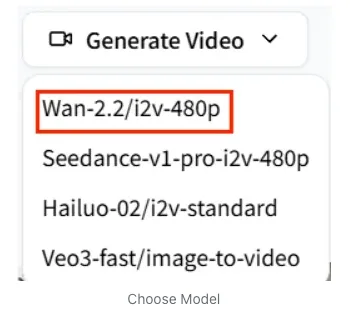
The model picker in WaveSpeed's walkthrough. The options on your screen may differ.
Upload the still in the model's Playground and enter the motion prompt. If the model allows it, choose 9:16 and a duration of about four seconds. Otherwise, trim a longer clip afterward. In the prompt, describe what should stay the same, what the camera does, and how the face moves from beginning to end.
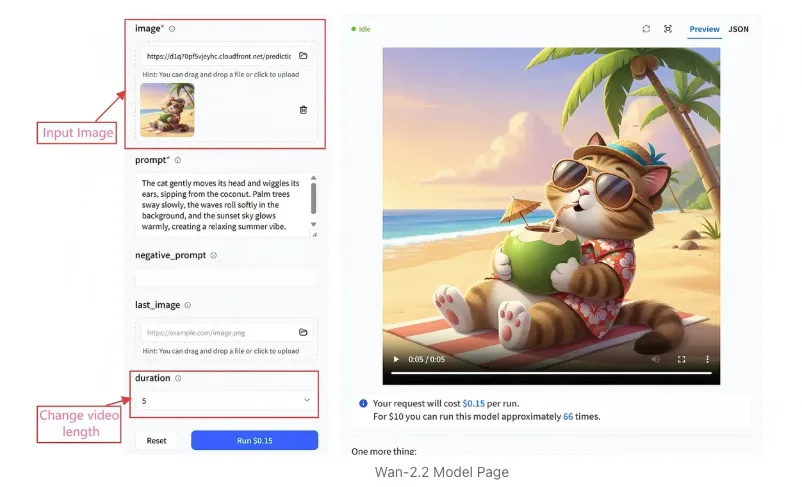
The image, prompt, duration, and Run controls in a WaveSpeed example. The screenshot shows a different subject and model from ours.
For a suspicious discovery, we use this direction:
Create a four-second vertical portrait video from the supplied image. Preserve the woman, her clothes, the table, and the room. Keep the camera steady and the table empty. Her eyes briefly lower as if she has noticed a new follow, then narrow in quiet suspicion. Her brows draw together slightly. She gives one restrained sideways glance and looks forward again. Keep her lips closed. No phone, new objects, speech, or exaggerated reaction.
For a knowing eye roll, we change the opening and the way the movement settles:
Create a four-second vertical portrait video from the supplied image. Preserve the character and room. Begin with a quick, subtle camera push toward her face, suggesting she has brought something closer to look at, while keeping the phone entirely outside the frame. She makes a small closed-mouth twist, rolls her eyes once, then returns her gaze directly to the camera and holds it. Keep the movement natural. No visible device, talking, repeated eye movements, or scene change.
We specify closed lips because an unplanned talking motion looks odd under a text hook. We also keep the phone out of frame so the app demo can provide the reveal in the next shot.
4. Review the movement and repair the weak part
Watch the clip at normal speed first. Then pause at any moment that feels off: a new prop appears, the mouth starts forming words, the expression goes too far, or the eyes keep wandering after the reaction should be over. You should be able to read the emotion in the first second.
If the first two seconds work but the ending drifts, keep the good part. Take a frame near the midpoint and generate a new ending that brings the gaze back to camera and holds it. Check the join for jumps in the face, lighting, or camera position. The reaction should finish on a steady beat before the cut to the demo.
5. Write the hook and edit it into the opening
Look at the app demo before you write the final hook. What will viewers see there? Write one short thought that points to it while leaving a question open. In our suspicious example, “I checked his recent follows. Why is Maya there?” tells viewers what the character noticed without answering the question. Cut context the demo doesn't need and claims it can't support. Play the four-second clip as you read the line; if you can't finish comfortably, shorten it.
Put the text over the approved reaction. Keep it away from the character's eyes and the parts of the screen covered by platform controls or captions. Use a readable size and enough contrast, and leave it up long enough for one pass. Once the expression lands, cut to the app screen that answers the hook.
Watch the whole opening on a phone. If the words and expression seem to tell different stories, change one of them. If the demo doesn't answer the hook, adjust the line to fit what the app actually shows. Name each export after its hook and reaction so you can find it when you compare results.
Here's one LURKE opening with a small facial reaction and the hook “i checked his recent follows. why is Maya there?” Maya is fictional. The complete ad would continue into the app demo.
The generated reaction with its text overlay. Press play to see the movement.
More examples from the same workflow
We used the same process for the posts below: choose the visual, work out what the viewer should feel or wonder, write the on-screen line, and review the result. Some are videos; others are photo carousels. They aren't all four-second LURKE openings, but each pairs a visual with a specific hook.
- Virginia Rock's LURKE video on TikTok and the Instagram reel show the same vertical post on two platforms. A quiet everyday action runs behind an emotionally specific text overlay; the caption connects it to LURKE.
- Mary's “We get it, you lost weight” video uses a direct quoted line over a portrait clip to establish the tension immediately.
- Mary's “the size 4, 6, 8 girlies” video places a pointed line over a simple standing shot, letting the text do the setup.
- Mary's “why are my jokes funny all of a sudden?” photo post shows how a specific question can lead a sequence of stills.
- Mary's “Turns out I wasn't” photo post uses an unfinished statement as the opening line for a carousel.
- Another Mary photo post is a further example of the still-image variation.
6. Test the opening against the outcome
Make a few openings for the same demo, pairing each hook with a fitting reaction. Keep the audience, placement, destination, and measurement window as consistent as the ad platform permits. Label the exports so you can trace each result back to its hook and clip.
Watch what happens at the cut to the demo. If viewers leave before it, the opening may be slow or confusing. If they watch but don't take the next action, the hook may be drawing curiosity from the wrong audience. Look beyond views to qualified visits, installs, or purchases. A small sample can suggest what to try next; it doesn't settle which version wins.
Where a local agent fits
A coding agent such as Codex, Claude Code, or Cursor can handle the repeatable work on your computer. Give it the source stills, approved clips, hooks, matching demos, and a file naming scheme. It can prepare prompts, call the video provider's API, add the approved text, join each reaction to its demo, and organize the exports. You'll still need to review the facial performance and the finished ad.
You can run these hook tests without hiring a UGC creator each time or paying for a dedicated UGC creation subscription. You'll still pay for the tools you use: the agent needs model access, and WaveSpeed generation uses a provider API. Depending on the tools, you may need a subscription, an API key, or usage credits. OpenAI bills API use separately from ChatGPT subscriptions, for example. Check the agent and video model terms before running a large batch.
Keep the still, prompt, model choice, selected clip, hook, demo, and final export in one place. When an opening works, you'll know exactly what to reuse for the next test.
Keep reading
More practical guides and comparisons selected for this topic.